PubSubのPullサブスクライバーのグレースフルシャットダウンについて
先日、Cloud PubSub の Pull サブスクライバーとして機能している Worker が終了するときに、処理であれば処理を終えてから停止してほしいなと思い(グレースフルシャットダウン)、調べていたところ、下の issue を発見した。
I roughly understand the want for this: that you'd want to close the connection to halt any further messages arriving and finish processing all in-memory messages, all preceding a shutdown of the application. However, Pub/Sub's model being what it is, I'm struggling to see why it would not be sufficient to nack all in-memory messages for some other consumer to process (or the application to process once it has restarted).
なるほど。
処理が途中で終わった場合、Ack を返さないので、PubSub はメッセージを再度送信する。
なので、Worker の処理を冪等を担保した実装にしてさえいれば、特にグレースフルシャットダウンについては考えなくても良さそう。
Twilioで取得した番号をSMS認証用に利用することは禁止らしい
zennの転載です。
この記事の内容はタイトルが全てです。
背景
チームで管理しているアカウント関連の2要素認証、電話番号登録で悩むことが多く、その解決策としてTwilioを利用できないかと考え調べました。
やりたかったこと
classmethodさんのこの記事の内容です。
Twilioについてわかったこと
まず、日本の電話番号では現状SMSを送受信できないことがわかりました。FAQ
続いて、米国の電話番号を無料トライアルで取得し、そちらでSMS受信->Slack通知ができることを確認しました。
なので、Twilioを契約し、米国電話番号を取得し($1/monthくらいで、安い!)、2要素認証用に利用しようとしたのですが、念のため、Twilioの日本法人に問い合わせてみました。
Webサービス利用の2要素認証用にSMS受信できる電話番号が欲しいのですが、御社のサービスを利用できますでしょうか
すると、こんな回答が、
恐れ入りますが、「Webサービス利用の2要素認証用にSMS受信できる電話番号が欲しい」というご利用目的は、弊社のサービス利用ポリシー上、違反行為となります。
禁止行為 違法、虚偽、有害であり、他人の権利を侵害し、又はTwilioの営業活動若しくは信用を害する行為を行い又は助長するために、Twilioサービスを利用してはなりません。かかる行為には、以下のものが含まれます。
こちらに該当するようです。(日本の番号/海外の番号は問わない)
おわりに
Twilioの米国の電話番号は2要素認証用として動きますが、Twilio日本法人からすると、それは違反行為にあたってしまうので、自己責任ですね。
僕は2要素認証目的でTwilioの電話番号を使うのはやめます。
AWS/GCPのコストをGoogleデータポータルで可視化する
AWS/GCP の各プロジェクト/各サービスにいくらかかっているのか把握したく、システムを構築しました。
システムの概要は下記になります。
- AWS/GCP の支払いレポートを BigQuery に集約する
- Google データポータルで BigQuery のデータを可視化する
- データポータルのメール配信機能で、毎週 Slack へ通知する
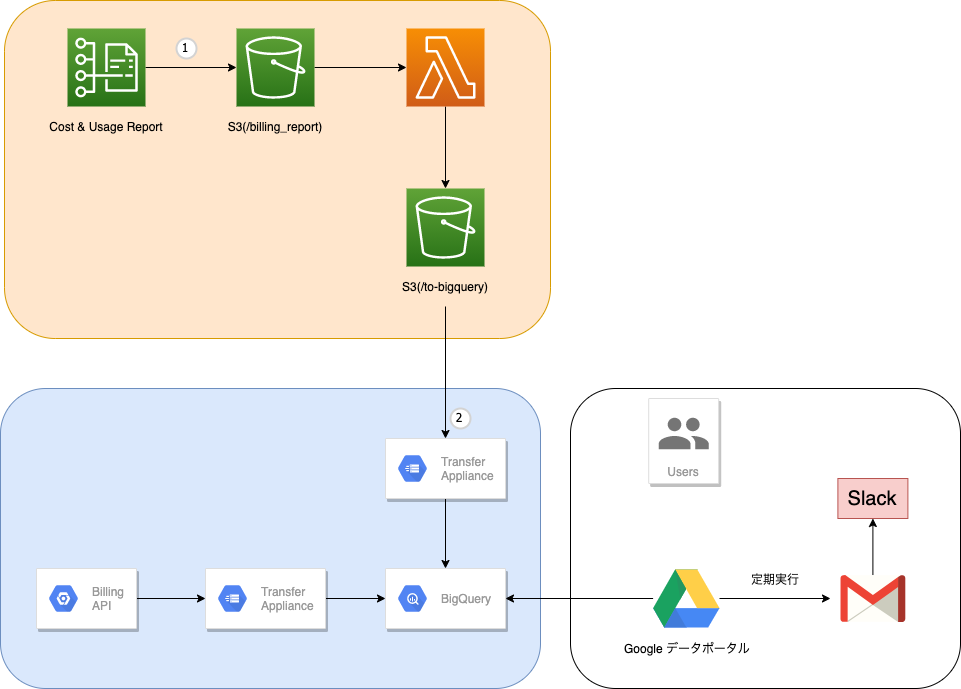
できるだけシンプルに、ドキュメントに沿った形で実現することを心がけました。
1つ Lambda 関数を作成しましたが、それ以外にコードは書いていません。
GCP 支払いレポート -> BigQuery
ドキュメント通りに設定するだけです。
BigQuery Data Transfer Service を使って、BigQuery に書き出してくれます。
AWS 支払いレポート -> BigQuery
まずはドキュメント通りにコストと使用状況レポートを作成します。
これで S3 に支払いレポートの CSV ファイルが作成されるようになります。図中の①です。
この CSV をそのまま BigQuery Data Transfer Service で BigQuery へ転送したかったのですが、
- BigQuery が CSV のカラム名の形式(
lineItem/UsageStartDateスラッシュがダメ)に対応していない。さらに製品列は動的である - CSV には 1ヶ月分のデータが入っており、BigQuery に重複して登録されてしまう
という問題があり、少し手を加える必要がありました。
- に関しては、BigQuery のテーブルを必要なスキーマをピックアップし、事前に作成することにしました。(
lineItem/UsageStartDate->lineItem_UsageStartDateのようにカラム名を変更し、スキーマを定義しました。パーティションもlineItem_UsageStartDateを設定しました)
[
  {
    "name": "lineItem_UsageStartDate",
    "type": "TIMESTAMP"
  },
  {
    "name": "lineItem_UsageEndDate",
    "type": "TIMESTAMP"
  },
  {
    "name": "lineItem_UnblendedCost",
    "type": "FLOAT"
  },
  {
    "name": "lineItem_ProductCode",
    "type": "STRING"
  },
  {
    "name": "resourceTags_userProject",
    "type": "STRING"
  },
  {
    "name": "resourceTags_userEnvironment",
    "type": "STRING"
  },
  {
    "name": "lineItem_CurrencyCode",
    "type": "STRING"
  },
  {
    "name": "lineItem_UsageType",
    "type": "STRING"
  },
  {
    "name": "lineItem_UsageAmount",
    "type": "FLOAT"
  },
  {
    "name": "lineItem_UnblendedRate",
    "type": "FLOAT"
  },
  {
    "name": "lineItem_LineItemDescription",
    "type": "STRING"
  }
]
- に関しては、図中にあるように S3 へのファイル更新をトリガーに、Lambda を実行し、特定の日のデータだけを抽出した CSV を
YYYYMMDD.csv.gzとして書き出すようにしました。
そして、図中② BigQuery Data Transfer Service で YYYYMMDD.csv.gz を BigQuery へ転送しました。(s3://バケット名/to-bigquery/{run_time-24h|"%F"}.csv.gz のように転送するファイル名を指定できます)
Lambda のコード
package main

import (
    "bytes"
    "compress/gzip"
    "context"
    "encoding/csv"
    "io"
    "io/ioutil"
    "log"
    "os"
    "time"

    "github.com/aws/aws-lambda-go/events"
    "github.com/aws/aws-lambda-go/lambda"
    "github.com/aws/aws-sdk-go/aws"
    "github.com/aws/aws-sdk-go/aws/session"
    "github.com/aws/aws-sdk-go/service/s3"
    "github.com/aws/aws-sdk-go/service/s3/s3manager"
    "github.com/jszwec/csvutil"
)

type Report struct {
    UsageStartDate      string `csv:"lineItem/UsageStartDate"`
    UsageEndDate        string `csv:"lineItem/UsageEndDate"`
    Cost                string `csv:"lineItem/UnblendedCost"`
    Service             string `csv:"lineItem/ProductCode"`
    Project             string `csv:"resourceTags/user:Project"`
    Env                 string `csv:"resourceTags/user:Environment"`
    CurrencyCode        string `csv:"lineItem/CurrencyCode"`
    UsageType           string `csv:"lineItem/UsageType"`
    UsageAmount         string `csv:"lineItem/UsageAmount"`
    UnblendedRate       string `csv:"lineItem/UnblendedRate"`
    LineItemDescription string `csv:"lineItem/LineItemDescription"`
}

func createSession() *session.Session {
    return session.Must(session.NewSession())
}

func s3Upload(ctx context.Context, buf bytes.Buffer, bucket, key string) (*s3manager.UploadOutput, error) {
    sess := createSession()

    uploader := s3manager.NewUploader(sess)
    res, err := uploader.UploadWithContext(ctx, &s3manager.UploadInput{
        Bucket: aws.String(bucket),
        Key:    aws.String(key),
        Body:   bytes.NewReader(buf.Bytes()),
    })
    if err != nil {
        return nil, err
    }
    return res, nil
}

func makeCsvGzip(w io.Writer, reports []Report) error {
    zw, err := gzip.NewWriterLevel(w, gzip.BestCompression)
    if err != nil {
        return err
    }
    defer zw.Close()

    cw := csv.NewWriter(zw)
    enc := csvutil.NewEncoder(cw)
    for _, report := range reports {
        if err := enc.Encode(report); err != nil {
            return err
        }
    }
    cw.Flush()
    return nil
}

func extractRecords(file *os.File, at time.Time) ([]Report, error) {
    gr, err := gzip.NewReader(file)
    if err != nil {
        return nil, err
    }
    defer gr.Close()

    cr := csv.NewReader(gr)
    dec, err := csvutil.NewDecoder(cr)
    if err != nil {
        return nil, err
    }

    validReports := []Report{}
    for {
        report := Report{}
        if err := dec.Decode(&report); err == io.EOF {
            break
        } else if err != nil {
            return nil, err
        }

        // lineItem/UsageStartDate カラム。例"2020-10-01T00:00:00Z"
        startTimeStr := report.UsageStartDate
        startTime, err := time.Parse(time.RFC3339, startTimeStr)
        if err != nil {
            return nil, err
        }

        // YYMMDDが等しいものを抽出
        if at.YearDay() == startTime.YearDay() && at.Year() == startTime.Year() {
            validReports = append(validReports, report)
        }
    }
    return validReports, nil
}

func s3Download(ctx context.Context, bucket, key string) (f *os.File, err error) {
    sess := createSession()

    tmpFile, err := ioutil.TempFile("", "tmp_")
    if err != nil {
        return nil, err
    }
    defer os.Remove(tmpFile.Name())

    downloader := s3manager.NewDownloader(sess)
    if _, err = downloader.DownloadWithContext(ctx, tmpFile, &s3.GetObjectInput{
        Bucket: aws.String(bucket),
        Key:    aws.String(key),
    }); err != nil {
        return nil, err
    }
    return tmpFile, nil
}

func HandleRequest(ctx context.Context, req events.S3Event) error {
    bucketName := req.Records[0].S3.Bucket.Name
    key := req.Records[0].S3.Object.Key
    // cost & usage report は UTC で書き出されている
    yesterday := time.Now().UTC().AddDate(0, 0, -1)
    today := time.Now().UTC()
    log.Printf("Object.Key: %v, Yesterday/Today: %v/%v\n", key, yesterday.Format("2006-01-02"), today.Format("2006-01-02"))

    // 2日分
    for _, day := range []time.Time{yesterday, today} {
        // s3から更新ファイル(gzip)をダウンロード
        file, err := s3Download(ctx, bucketName, key)
        if err != nil {
            log.Println("Error s3 download")
            return err
        }

        // csv.gzから対象レコードを抽出
        reports, err := extractRecords(file, day)
        if err != nil {
            log.Printf("Error extract on %v\n", day.Format("2006-01-02"))
            return err
        }
        if len(reports) < 1 {
            log.Printf("None billing data on %v\n", day.Format("2006-01-02"))
            return nil
        }

        // csv.gzを作成
        var buf bytes.Buffer
        if err = makeCsvGzip(&buf, reports); err != nil {
            log.Printf("Error make gzip on %v\n", day.Format("2006-01-02"))
            return err
        }

        // s3へupload
        upkey := "to-bigquery/" + day.Format("2006-01-02") + ".csv.gz"
        res, err := s3Upload(ctx, buf, bucketName, upkey)
        if err != nil {
            log.Printf("Error s3 upload on %v\n", day.Format("2006-01-02"))
            return err
        }
        log.Printf("Complete! %v\n", res)
    }
    return nil
}

func main() {
    lambda.Start(HandleRequest)
}
Google データポータルで可視化
データポータルでは、容易に BigQuery のデータを可視化できます。
見たいグラフに応じて Group By してカスタムクエリを作成します。
GCP 日別クエリ例
SELECT
  DATE(usage_start_time) AS date,
  project.name AS project_name,
  service.description AS service_name,
  (SUM(CAST(cost * 1000000 AS int64))
    + SUM(IFNULL((SELECT SUM(CAST(c.amount * 1000000 as int64))
                  FROM UNNEST(credits) c), 0))) / 1000000
    AS cost
FROM `テーブル名`
WHERE
  _PARTITIONTIME BETWEEN PARSE_TIMESTAMP('%Y%m%d', @DS_START_DATE) AND TIMESTAMP_ADD(PARSE_TIMESTAMP('%Y%m%d', @DS_END_DATE), INTERVAL 1 DAY)
AND
  DATE(usage_start_time) >= PARSE_DATE('%Y%m%d', @DS_START_DATE)
AND
  DATE(usage_start_time) <= PARSE_DATE('%Y%m%d', @DS_END_DATE)
GROUP BY 1, 2, 3
ORDER BY 1 ASC, 2 ASC, 3 ASC
AWS 日別クエリ例
SELECT
  DATE(lineItem_UsageStartDate) AS date,
  resourceTags_userProject AS project_name,
  lineItem_ProductCode AS service_name,
  resourceTags_userEnvironment AS env_name,
  SUM(lineItem_UnblendedCost) AS cost
FROM `テーブル名`
WHERE
  DATE(lineItem_UsageStartDate) >= PARSE_DATE('%Y%m%d', @DS_START_DATE)
AND
  DATE(lineItem_UsageStartDate) <= PARSE_DATE('%Y%m%d', @DS_END_DATE)
GROUP BY 1, 2, 3, 4
ORDER BY 1 ASC, 2 ASC, 3 ASC, 4 ASC
Google データポータルでメールをスケジュール配信
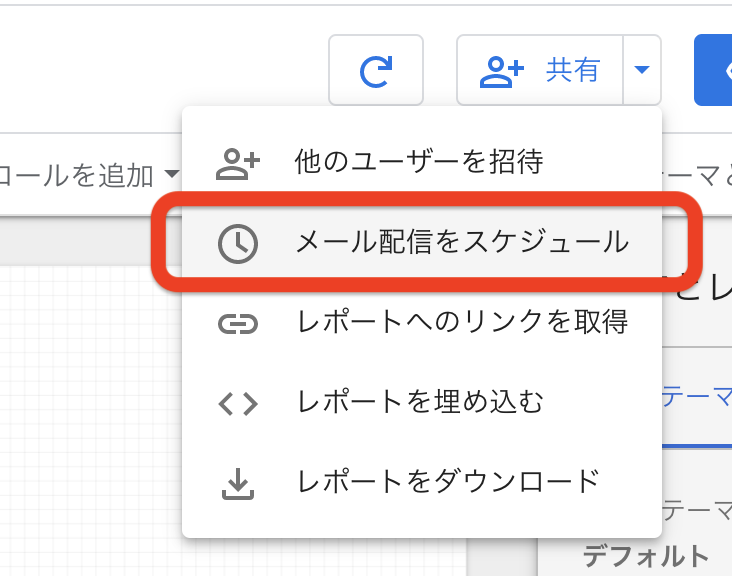
「共有」の項目にメール配信機能もあります。
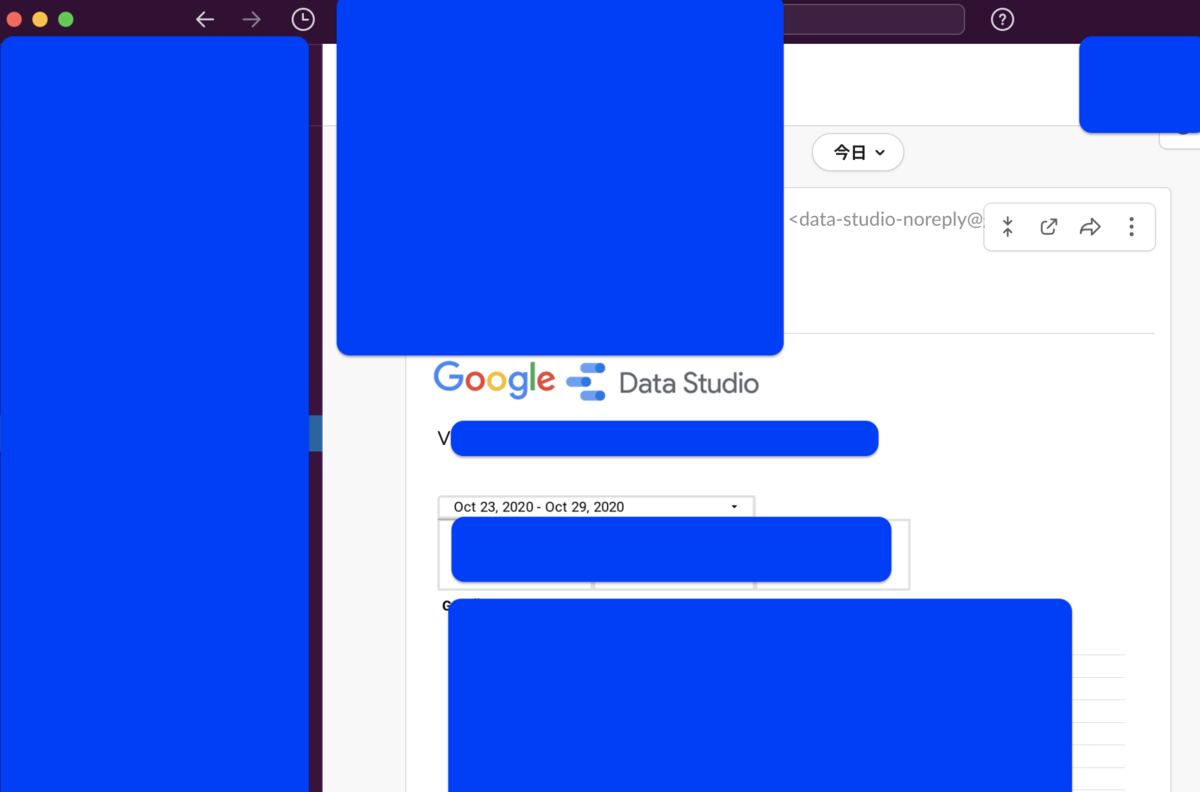
そのメールを Slack へ転送するようにすると、データポータルを開かずとも、見たいグラフを見れるようにできました。
Github Actions から Lambda をデプロイする
個人のローカル PC からデプロイする場合
- 他の人がデプロイしづらい
- 個人のローカル PC 内のツールのバージョンが変わる
といった問題があり、Lambda や Cloud Functions 等も CI/CD からデプロイできた方が良さそうかもと感じている。
とりあえず、Lambda を Github Actions からデプロイするようにしてみた。
.github/workflows/ci.yml
name: deploy to lambda
on:
  push:
    branches:
      - main
jobs:
  deploy:
    runs-on: ubuntu-latest
    steps:
      - uses: actions/checkout@v2
      - uses: actions/setup-go@v2
        with:
          go-version: "1.15"
      - name: Build binary
        run: GOOS=linux go build main.go && zip function.zip main
      - name: Configure AWS Credentials
        uses: aws-actions/configure-aws-credentials@v1
        with:
          aws-access-key-id: ${{ secrets.AWS_ACCESS_KEY_ID }}
          aws-secret-access-key: ${{ secrets.AWS_SECRET_ACCESS_KEY }}
          aws-region: ap-northeast-1
      - name: Deploy AWS Lambda
        run: aws lambda update-function-code --function-name ラムダ関数名 --zip-file fileb://function.zip
Github Actions 公式、AWS 公式のモノのみでデプロイする形にしたが、こちらを使っても良さそう。
{
  "Version": "2012-10-17",
  "Statement": [
    {
      "Effect": "Allow",
      "Action": [
        "s3:PutObject",
        "iam:ListRoles",
        "lambda:UpdateFunctionCode",
        "lambda:CreateFunction",
        "lambda:UpdateFunctionConfiguration"
      ],
      "Resource": "*"
    }
  ]
}
CloudSQLの日時バックアップを復元
本番 DB のデータで SQL 実行を試したいとき、
特定のテーブルを mysqldump して、ローカルの DB に入れたりするより、
別インスタンスを作成して、日時バックアップをそちらにリストアするのが最速だと感じているので、メモしておきます。
Step1. 別インスタンスを作成する
GCP コンソールでポチポチで良い
Step2. バックアップの id を取得する
例えば、GCP プロジェクト「abc_prod」、CloudSQL インスタンス「abc_prod_instance」の場合
curl -X GET \
-H "Authorization: Bearer "$(gcloud auth print-access-token) \
https://www.googleapis.com/sql/v1beta4/projects/abc_prod/instances/abc_prod_instance/backupRuns
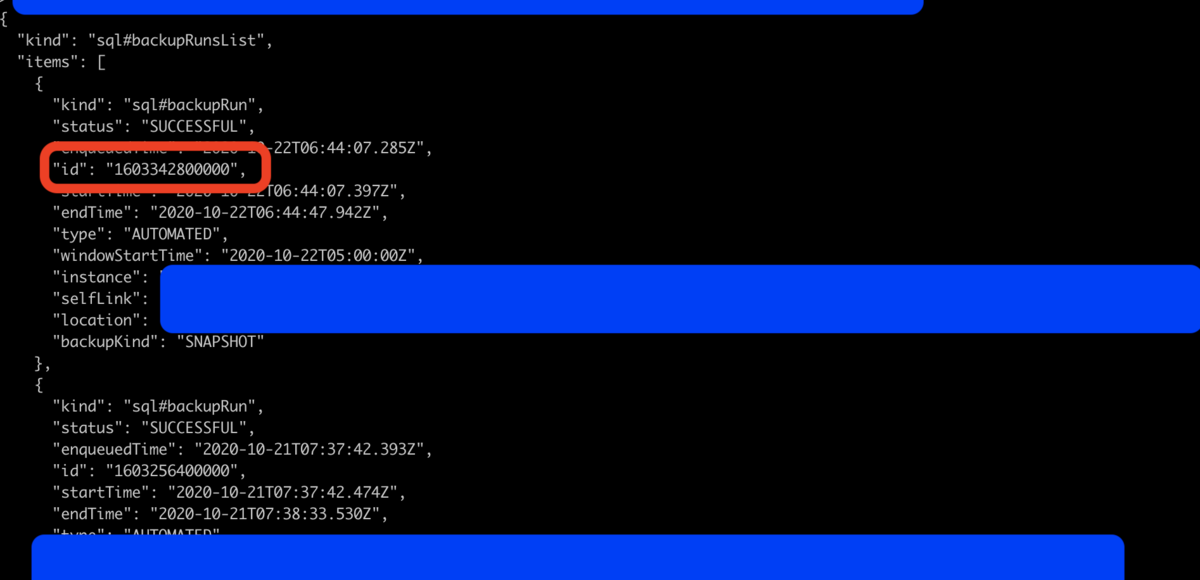
Step3. 別インスタンスにバックアップをリストアする
request.json を用意する
{
  "restoreBackupContext":
  {
    "backupRunId": "1603342800000",
    "project": "abc_prod",
    "instanceId": "abc_prod_instance"
  }
}
例えば、GCP プロジェクト「def_test」、CloudSQL インスタンス「def_test_instance」にリストアする場合
curl -X POST \
-H "Authorization: Bearer "$(gcloud auth print-access-token) \
-H "Content-Type: application/json; charset=utf-8" \
-d @request.json \
https://www.googleapis.com/sql/v1beta4/projects/def_test/instances/def_test_instance/restoreBackup
HashiCorp Waypoint で GKE へデプロイしてみた
先日、Announcing HashiCorp Waypoint が発表され、早速 GKE へデプロイするチュートリアルをやってみた。
Install Waypoint on Local
Homebrew でインストールできる。
$ brew tap hashicorp/tap

$ brew install hashicorp/tap/waypoint
$ waypoint
Welcome to Waypoint
Docs: https://waypointproject.io
Version: v0.1.2

Usage: waypoint [-version] [-help] [-autocomplete-(un)install] <command> [args]

Common commands
  build        Build a new versioned artifact from source
  deploy       Deploy a pushed artifact
  release      Release a deployment
  up           Perform the build, deploy, and release steps for the app

Other commands
  artifact        Artifact and build management
  config          Application configuration management
  context         Server access configurations
  deployment      Deployment creation and management
  destroy         Delete all the resources created for an app
  docs            Show documentation for components
  exec            Execute a command in the context of a running application instance
  hostname        Application URLs
  init            Initialize and validate a project
  install         Install the Waypoint server to Kubernetes, Nomad, or Docker
  logs            Show log output from the current application deployment
  runner          Runner management
  server          Server management
  token           Authenticate and invite collaborators
  ui              Open the web UI
  version         Prints the version of this Waypoint CLI
準備
GKEクラスタ作成
export PROJECT=
export REGION=
export ZONE=
export CLUSTER=

gcloud container clusters create ${CLUSTER} \
  --zone ${ZONE} \
  --scopes "https://www.googleapis.com/auth/cloud-platform" \
  --num-nodes 2 \
  --addons HorizontalPodAutoscaling,HttpLoadBalancing \
  --preemptible \
  --enable-ip-alias \
  --project ${PROJECT}

gcloud container clusters get-credentials ${CLUSTER} --zone ${ZONE} --project ${PROJECT}
サンプルアプリケーションをクローン
$ git clone https://github.com/hashicorp/waypoint-examples.git

$ cd waypoint-examples/kubernetes/nodejs
Install Waypoint server on k8s
Waypoint は CLI や web UI の client と、データの保存や build/deploy の計画を管理する server を必要とするらしい。
今回 CLI は mac で、server は k8s 上に StatefulSet として作成していた。
$ waypoint install --platform=kubernetes -accept-tos
service/waypoint created
statefulset.apps/waypoint-server created
Waypoint server successfully installed and configured!

The CLI has been configured to connect to the server automatically. This
connection information is saved in the CLI context named "install-1603068782".
Use the "waypoint context" CLI to manage CLI contexts.

The server has been configured to advertise the following address for
entrypoint communications. This must be a reachable address for all your
deployments. If this is incorrect, manually set it using the CLI command
"waypoint server config-set".

Advertise Address: 104.198.117.244:9701
HTTP UI Address: https://104.198.117.244:9702
waypoint install で作成でき、web UI のアドレスも書き出された。
ドキュメント通り、GKE コンソールから waypoint-server StatefulSet を確認できた。
Initialize Waypoint
waypoint.hcl を GKE 用に少し変更する。
project = "example-nodejs"

app "example-nodejs" {
  labels = {
    "service" = "example-nodejs",
    "env"     = "dev"
  }

  build {
    use "pack" {}
    registry {
      use "docker" {
        image = "gcr.io/<PROJECT-NAME-HERE>/example-nodejs"
        tag   = "1.0.0"
      }
    }
  }

  deploy {
    use "kubernetes" {
      probe_path = "/"
    }
  }

  release {
    use "kubernetes" {
      load_balancer = true
      port          = 80
    }
  }
}
$ waypoint init
✓ Configuration file appears valid
✓ Connection to Waypoint server was successful
✓ Project "example-nodejs" and all apps are registered with the server.
✓ Plugins loaded and configured successfully
✓ Authentication requirements appear satisfied.

Project initialized!

You may now call 'waypoint up' to deploy your project or
commands such as 'waypoint build' to perform steps individually.
Build, deploy and release application
$ waypoint up

» Building...
Creating new buildpack-based image using builder: heroku/buildpacks:18
✓ Creating pack client
✓ Building image
 │ [exporter] Adding 1/1 app layer(s)
 │ [exporter] Adding layer 'launcher'
 │ [exporter] Adding layer 'config'
 │ [exporter] Adding label 'io.buildpacks.lifecycle.metadata'
 │ [exporter] Adding label 'io.buildpacks.build.metadata'
 │ [exporter] Adding label 'io.buildpacks.project.metadata'
 │ [exporter] *** Images (a1fc99d29294):
 │ [exporter]       index.docker.io/library/example-nodejs:latest
 │ [exporter] Adding cache layer 'heroku/nodejs-engine:nodejs'
 │ [exporter] Adding cache layer 'heroku/nodejs-engine:toolbox'
✓ Injecting entrypoint binary to image
✓ Tagging Docker image: example-nodejs:latest => asia.gcr.io/<PROJECT-NAME-HERE>/example-nodejs:1.0.0
❌ Pushing Docker image...
 │ The push refers to repository [asia.gcr.io/<PROJECT-NAME-HERE>/example-nodejs]
 │ 34016b9eaf1f: Preparing
 │ 2b6a1fb6e02c: Preparing
 │ 7cffc3c153c7: Preparing
 │ 294cd170ac9e: Preparing
 │ c6380445f8e9: Preparing
 │ 288bed318c52: Waiting
 │ 8db95a325086: Waiting
 │ 8dff7465e43d: Waiting
 │ 17cb30386b24: Waiting
 │ 7a694df0ad6c: Waiting
 │ 3fd9df553184: Waiting
 │ 805802706667: Waiting
 │
! unable to stream Docker logs to terminal: unauthorized: You don't have the
  needed permissions to perform this operation, and you may have invalid
  credentials. To authenticate your request, follow the steps in:
  https://cloud.google.com/container-registry/docs/advanced-authentication
1回目失敗した。ちょっとよくわかっていないが、GCR で必要な認証が足りてなかったようで、下記コマンドを叩く。
$ gcloud auth configure-docker
$ waypoint up

» Building...
Creating new buildpack-based image using builder: heroku/buildpacks:18
✓ Creating pack client
✓ Building image
 │ [exporter] Reusing 1/1 app layer(s)
 │ [exporter] Reusing layer 'launcher'
 │ [exporter] Reusing layer 'config'
 │ [exporter] Adding label 'io.buildpacks.lifecycle.metadata'
 │ [exporter] Adding label 'io.buildpacks.build.metadata'
 │ [exporter] Adding label 'io.buildpacks.project.metadata'
 │ [exporter] *** Images (a1fc99d29294):
 │ [exporter]       index.docker.io/library/example-nodejs:latest
 │ [exporter] Reusing cache layer 'heroku/nodejs-engine:nodejs'
 │ [exporter] Reusing cache layer 'heroku/nodejs-engine:toolbox'
✓ Injecting entrypoint binary to image

Generated new Docker image: example-nodejs:latest
✓ Tagging Docker image: example-nodejs:latest => asia.gcr.io/<PROJECT-NAME-HERE>/example-nodejs:1.0.0
✓ Pushing Docker image...
 │ c6380445f8e9: Pushed
 │ 288bed318c52: Pushed
 │ 8db95a325086: Pushed
 │ 8dff7465e43d: Pushed
 │ 17cb30386b24: Pushed
 │ 7a694df0ad6c: Layer already exists
 │ 3fd9df553184: Layer already exists
 │ 805802706667: Layer already exists
 │ 1.0.0: digest: sha256:53f44e55daeb5b00fc107651a6ed77ab6bd879d9a28d3a8890cdca5117
 │ 29e642 size: 2830
⠹ Docker image pushed: asia.gcr.io/<PROJECT-NAME-HERE>/example-nodejs:1.0.0

» Deploying...
✓ Kubernetes client connected to https://34.85.17.183 with namespace default
✓ Creating deployment...
✓ Deployment successfully rolled out!

» Releasing...
✓ Kubernetes client connected to https://34.85.17.183 with namespace default
✓ Creating service...
⠙ Service is ready!

The deploy was successful! A Waypoint deployment URL is shown below. This
can be used internally to check your deployment and is not meant for external
traffic. You can manage this hostname using "waypoint hostname."

   Release URL: http://35.194.113.175
Deployment URL: https://merely-welcomed-manatee--v1.waypoint.run
成功。
http://35.194.113.175 へアクセスすると無事に表示された。
少し変更を加え、2回目 waypoint up をすると、
   Release URL: http://35.194.113.175
Deployment URL: https://merely-welcomed-manatee--v2.waypoint.run
となり、Deployment URL は waypoint deploy ごとに作成されていた。
終わりに
今回はただチュートリアルをやっただけだが、良さそうだなと感じた。ドキュメントもかなり充実していた。
CI/CD で実行することはもちろん考慮されている。
Integrating Waypoint with GitHub Actions | Waypoint by HashiCorp
しかし、Waypoint server が動いていて、そこに CI/CD 上で waypoint CLI を叩く形だと思っている。
Waypoint server をどう立てるべきだろう。。k8s クラスタを運用していたらそこに立てればいいので悩まないかもだけど。。
Terraform Cloud みたいに、Waypoint Cloud みたいなのも出てくるのかな。
参考
そもそも Waypoint がどういったものなのかは、こちらが参考になった。
確かに、AppEngine、k8s、CloudRun、他のクラウドサービス... それぞれ専用の CLI や設定ファイルが必要で、久しぶりにデプロイする時にはドキュメントを確認しに行っている気がする。
各インフラを waypoint up waypoint build waypoint deploy waypoint release... と同じ操作が可能になるのはありがたい。
Terraform でサービスリソースの作成、Waypoint でビルド・デプロイ・リリースのワークフロー。
クラウド時代のインフラエンジニアの主なツールとして HashiCorp からは目が離せない。
